
Locations Help

Personal Online Banking Login

Refer A Friend & Earn Up To $500

Business Banking

Login

Mortgage Statements

Login

Credit Card Logins

Go

Wealth - Trust & Investments

Login

Wealth - Raymond James

Login

Wealth - (RPS) Epic Advisor

Login

Getting Started

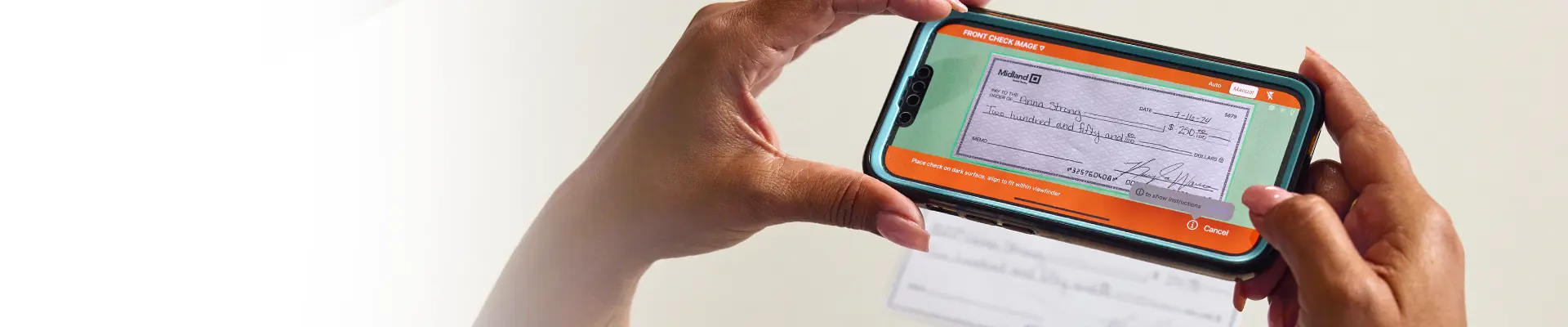
Mobile Check Deposit lets you securely deposit checks anytime, anywhere using the Midland States Bank mobile app. No branch visit is required. Simply endorse your check, take photos of the front and back, and submit your deposit right from your phone.

It’s fast, convenient, and available whenever you need it.


Before You Start

Step 1 - Make sure you have:

  1. The Midland States Bank mobile app
  2. A check made payable to you
  3. A flat, well-lit surface to take photos

Step 2 - Endorse the back of the check:
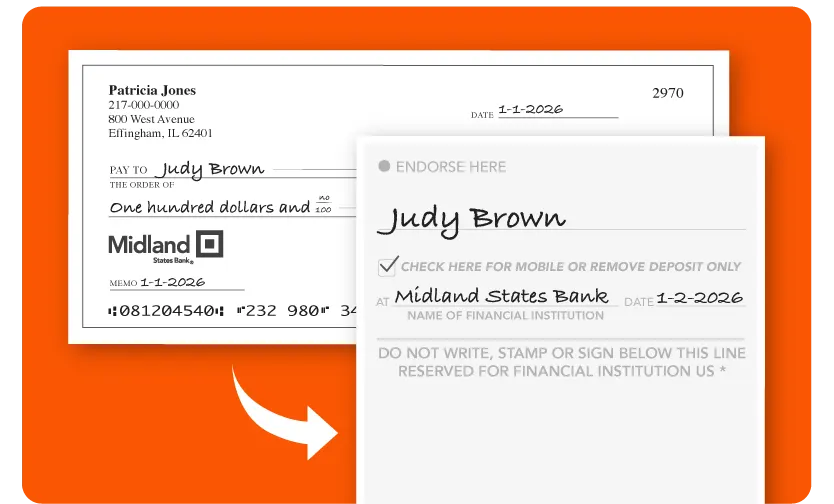
  1. Flip the check over and sign your name
  2. Write exactly: “For mobile deposit only at Midland States Bank” Deposits without the correct endorsement may be rejected.
check example image showing front and back of a mobile deposit check

It’s as Easy as Sign, Snap & Send

Sounds pretty great, right? Let's get you set up...
1. Open the App

Open the Midland States Bank App. Choose "Deposit" from the bottom menu.

2. Sign, Snap and Send!

Sign the back of your check and write the required mobile deposit endorsement. Then capture photos of the front and back of your check using your phone’s camera.

3. Enjoy!

Enjoy the extra time you gain back, no branch trip required.

Mobile Deposit Limits

Mobile deposit limits help protect your account. You can use our app to deposit checks with the following limits:

  • Up to $10,000 per check
  • Up to $15,000 per day
  • Up to $30,000 in a rolling 30-day period

What is a rolling 30-day period?
We total your mobile deposits from the past 30 days, not the calendar month.

Frequently Asked Questions

What are the steps for depositing a check using mobile check deposit?

Step 1: Endorse the Back of the Check
This step is required.

Flip the check over and:

  • Sign your name
  • Write exactly: “For mobile deposit only at Midland States Bank”

Both the signature and this wording are required for mobile deposit.

Step 2: Take Photos of the Check
Use the app to take clear photos of the front and back of your check.

Step 3: Submit Your Deposit
Follow the prompts in the app to:

  • Select your deposit account
  • Enter the check amount
  • Submit your deposit

You’ll receive confirmation once your deposit is successfully submitted.

Why was my mobile deposit rejected?

Common reasons include:

  • Missing or incorrect endorsement
  • Poor photo quality
  • Entered amount doesn’t match the check
  • Exceeding mobile deposit limits

How can I make sure my photos are accepted?

  • Place the check on a flat, solid-colored surface
  • Use good lighting with no shadows
  • Wait for the green edge detectors before taking the photo

What are Midland’s mobile deposit limits?

You can deposit checks using the mobile app with these limits:

  • $10,000 per check
  • $15,000 per day
  • $30,000 in a rolling 30-day period

A rolling 30-day period means we total your deposits from the past 30 days, not the calendar month.

For example: A $5,000 deposit today counts toward your 30-day total for the next 30 days.

Prefer Personal Assistance?

Our team of dedicated professionals are here to support you.